
← All tools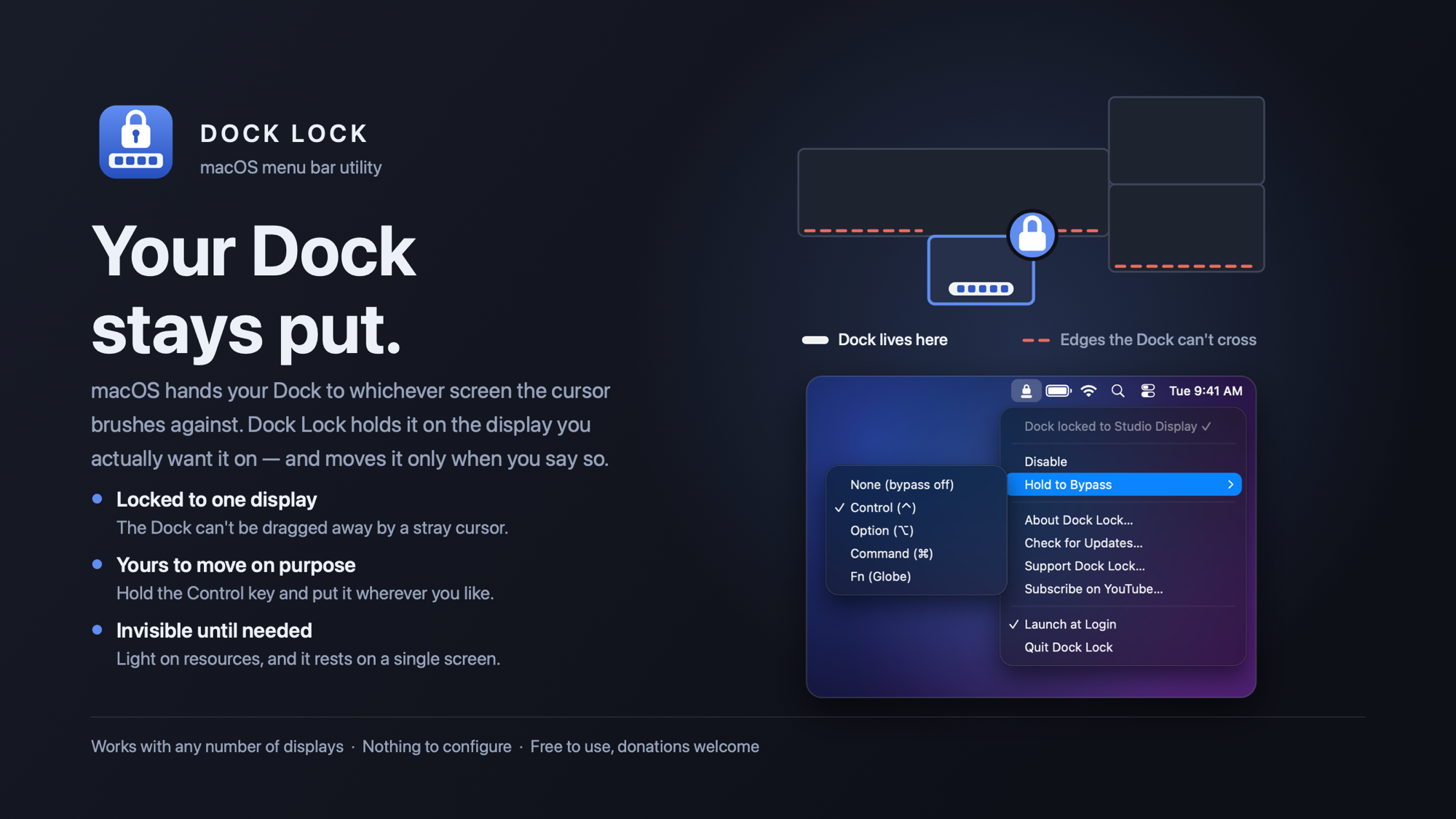
What it does
macOS hands your Dock to whichever screen the cursor brushes against. Dock Lock keeps it on the display you actually want it on, so a stray cursor at another screen's bottom edge can't drag it away. Hold Control (you can change the key, or turn it off) to move the Dock on purpose, and the lock follows it to the new display.
Requirements
- Mac with Apple silicon (M-series)
- macOS 15 or later. Built for macOS 15 and tested on macOS 26.
- Intel Macs are not supported
Install
- Open the downloaded disk image and drag Dock Lock onto the Applications shortcut.
- Open Dock Lock. Grant Accessibility access when macOS asks (System Settings → Privacy & Security).
- A padlock icon appears in the menu bar. That's it. "Launch at Login" is in its menu.
Permission it needs
- Accessibility, to hold the cursor back from the screen edge.
It does not need Screen Recording, Input Monitoring or Full Disk Access.
Good to know
- It pauses itself when you have only one display, or when the Dock isn't set to the bottom and always visible. Its menu shows why.
- It is not on the Mac App Store. Apple's sandbox does not allow this kind of cursor control, so this download is the permanent home.
- Dock Lock only goes online to check for updates, and only if you allow it. It asks you once, and you can switch it off any time. Updates are signed, so nothing installs unless it is signed by Triple S Games. The Support and Subscribe items in its menu open web pages in your browser when you click them.
- Light on resources.
Free, with donations
Dock Lock is free to use. If it's useful to you, donations are welcome and help fund more small Mac tools.
SHA-256 of DockLock-1.13.dmg: 110e085ab2f5bf05c12e69baa174829afa80b48120f4f9cef4cd373aee21c8b1
Developed by Triple S Games (Comet Fourteen, LLC).