Version 1.0.1 · 2.9 MB · Free · Notarized by Apple · macOS 26
See it in action
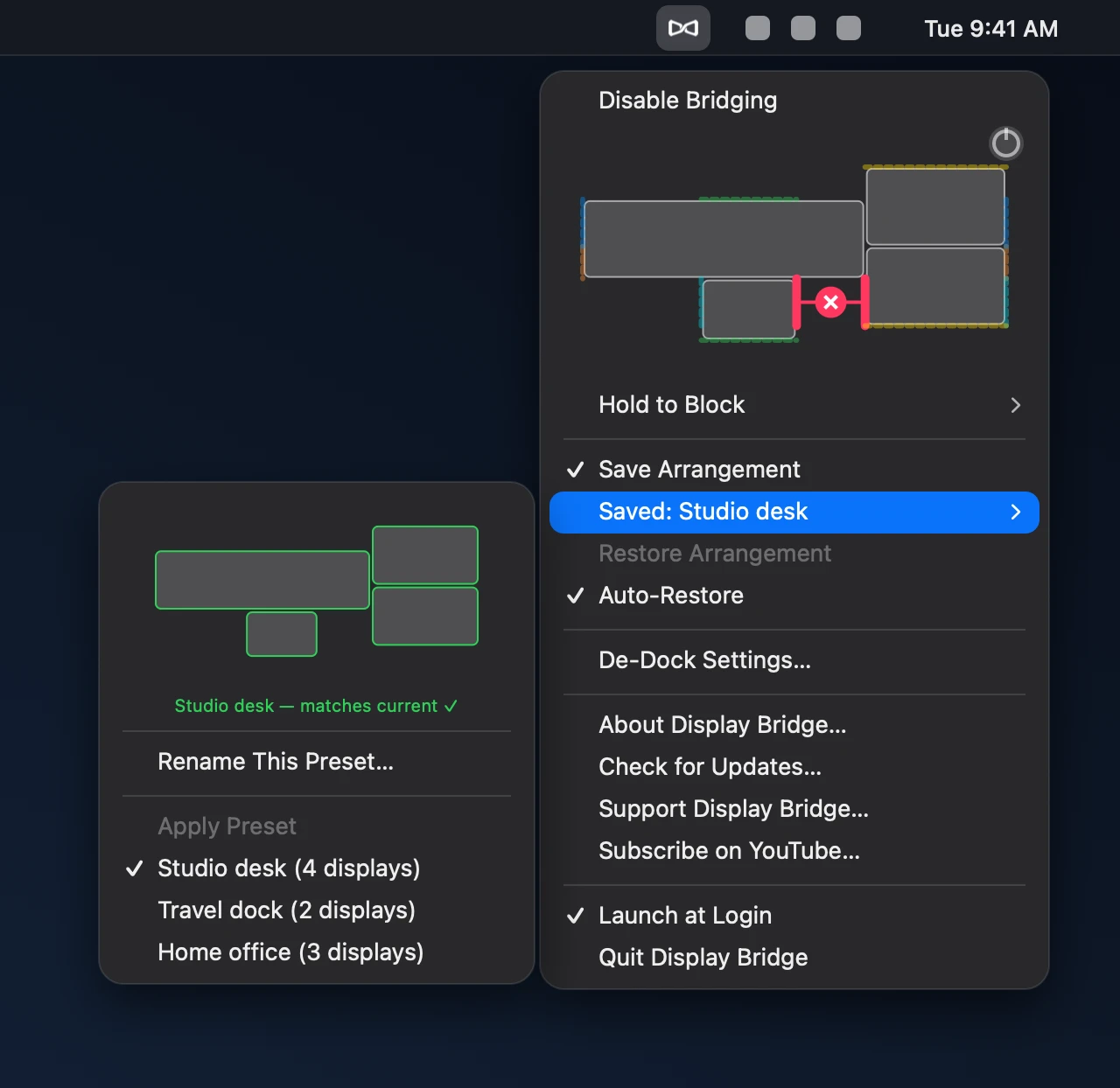
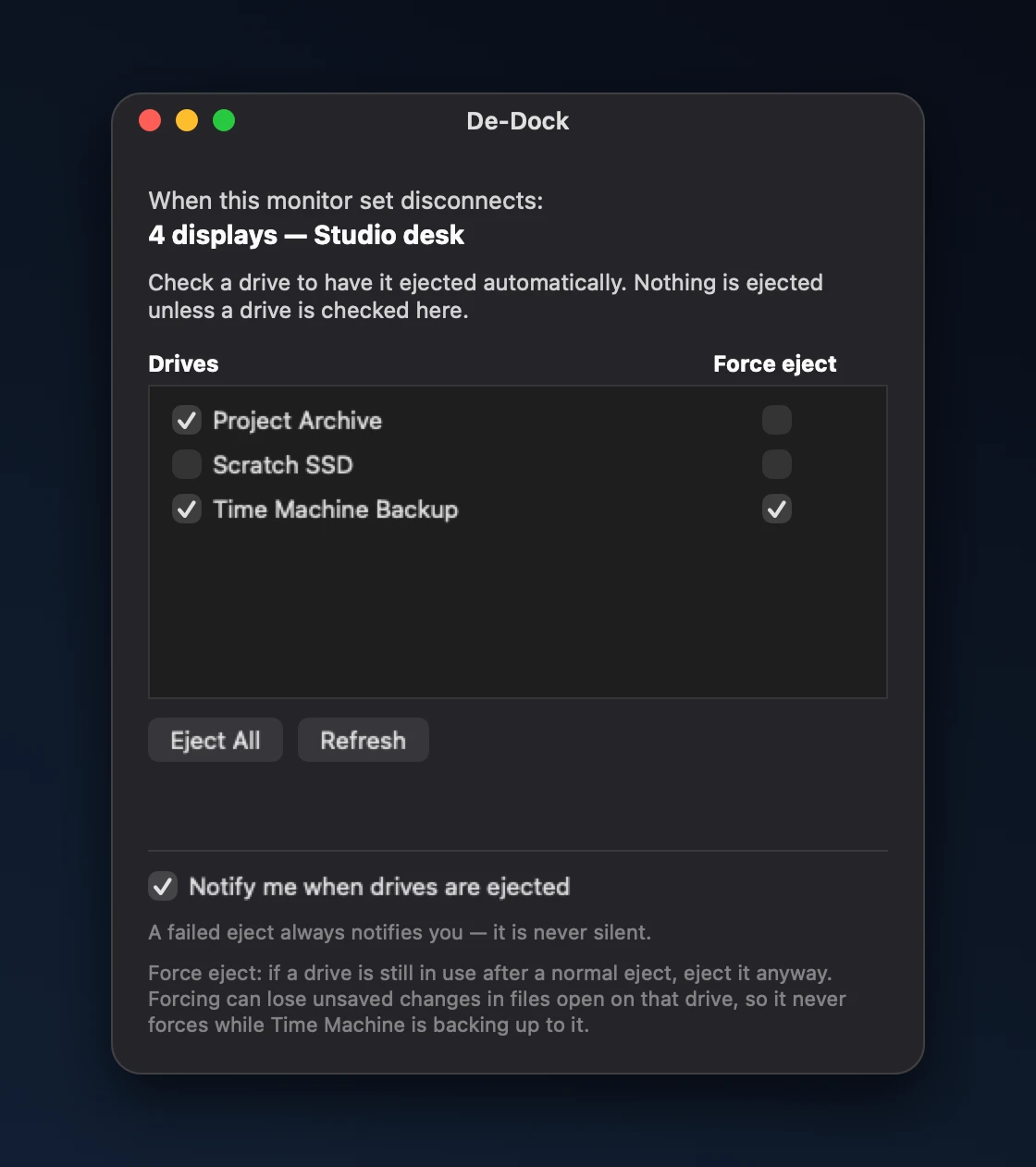
The Display Bridge menuDe-Dock settings
What it does
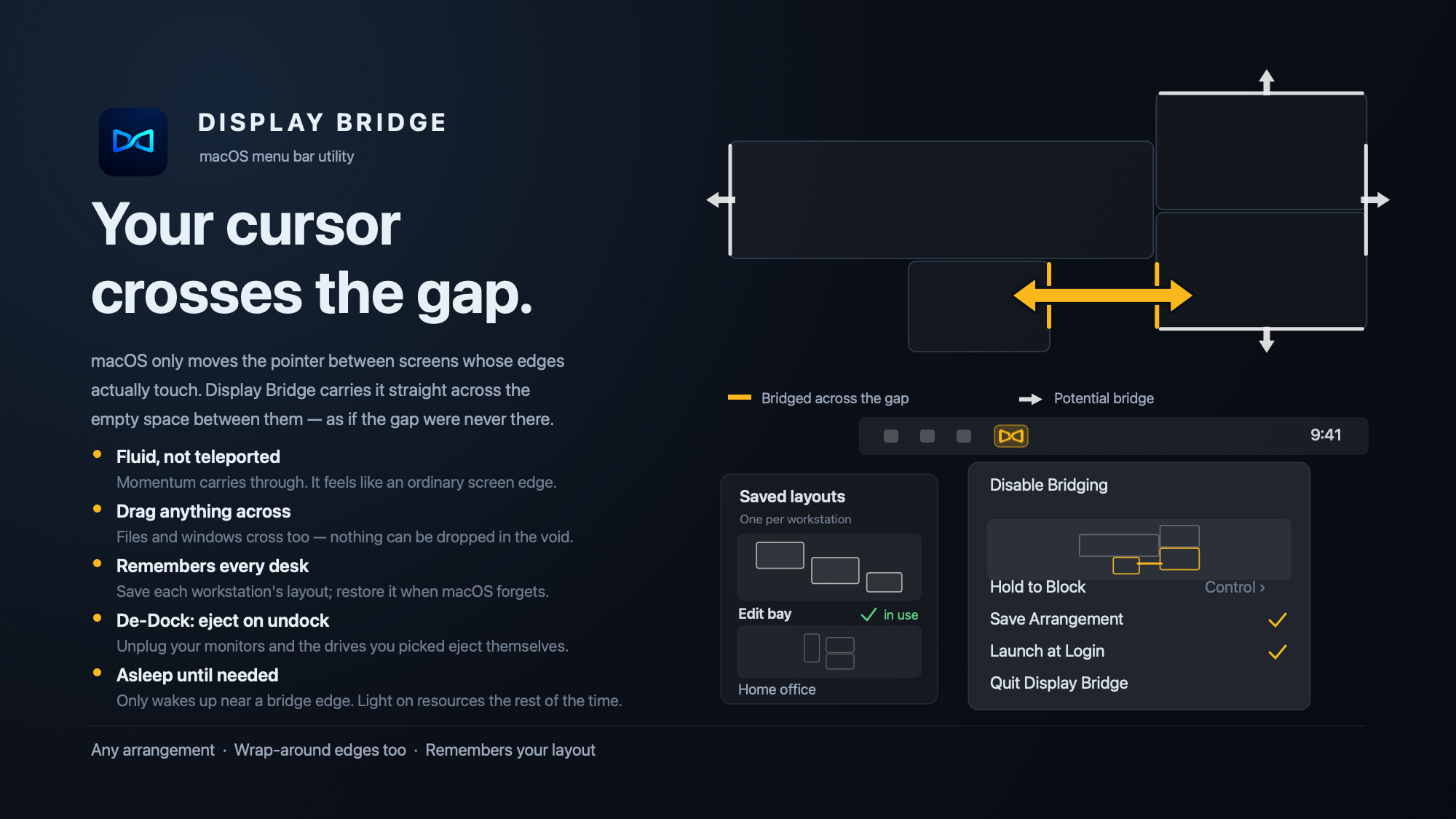
macOS only moves the pointer between screens whose edges actually touch. Display Bridge carries it straight across the empty space between them, so the gap feels like it was never there. It also wraps the cursor around outer edges, remembers your display arrangement for each workstation, and can eject chosen external drives when a known monitor set disconnects. For each drive you can optionally turn on Force eject. It is off by default, tries a normal eject first, and never forces anything while Time Machine is backing up.
Requirements
macOS 26 for now. Tested on macOS 26 with Apple silicon.
Install
Open the downloaded disk image and drag Display Bridge onto the Applications shortcut.
Open Display Bridge and grant Accessibility access when macOS asks (System Settings → Privacy & Security).
It runs from the menu bar. "Launch at Login" and "Save Arrangement" are in its menu.
Permissions it needs
Accessibility, to carry the cursor across the gap.
Notifications, only if you use the drive-eject feature.
Good to know
Display Bridge collects nothing about you or your files. Its only network access is the update check: it asks you once, then checks about once a day, and you can switch that off. Nothing else is sent.
macOS may list the developer as "Comet Fourteen, LLC", the company behind Triple S Games.
Its menu has About, Check for Updates, Support and Subscribe on YouTube items. If bridging is off because permission hasn't been given, the app does nothing at all. It only steps in near the edges of your displays, so it stays light on resources.
Free
Free to download and use.
SHA-256 of DisplayBridge-1.0.1.dmg: f0b0633dc46e10d8e5ecd7c535d451cc567d8fe43fca1e718617e38e90509d19
Developed by Triple S Games (Comet Fourteen, LLC).